
Salesforce
Summary
Frends offers seamless integration with Salesforce, enabling you to effortlessly connect and automate data flows between your systems and Salesforce.
Frends has tasks for performing all core Salesforce operations.
By leveraging Frends' task-based approach, you can configure and customize Salesforce integrations according to your specific requirements. Frends offers a wide range of tasks that facilitate integrations to a variety of systems and protocols.
Setting up the environment
To use the tasks in this package, you need a Salesforce environment. To create one, follow these steps:
- Register to a Salesforce (for test purposes you can use a Developer Edition trial at Salesforce).
- Go to Setup → Apps → External Client Apps → Settings.
- Enable Allow creation of connected apps.
- Click New Connected App.
- Fill in the following:
- Required fields (Connected App Name, API Name, Contact Email).
- Enable OAuth Settings.
- Set the Callback URL (any valid URL, e.g., https://www.google.com).
- Add Full access (full), Manage user data via APIs (api) and Perform requests at any time (refresh_token, offline_access) to Selected OAuth Scopes.
- Enable Client Credentials Flow.
- Get the Consumer Key and Consumer Secret by clicking Manage Consumer Details.
You can retrieve them later by following these steps:- Go to Setup → Apps → App Manager.
- Click View in the Action column next to your app.
- Click Manage Consumer Details (you will need a verification code sent to the email address you provided during registration).
- Go to Setup → Identity → OAuth and OpenID Connect Settings.
- Enable OAuth Username-Password Flows.
(Additional steps to set up PubSup API access) 9. Enable events
- Go to Navbar → Platform Tools → Integrations → Change Data Capture
- Select Event (Event) and save changes
- Get TenantId (OrgID)
- Go to Navbar → Settings → Company Settings → Company Information
- Tenant id is under Organization Detail -> Salesforce.com Organization ID
- Create custom events
- Go to Navbar → Platform Tools → Integrations → Platform Events
- Click New Platform Event and set the following:
- Label: Test Event
- Plural Label: Test Events.
- Object Name: Test_Event (API Name will be "Test_Event__e").
- Publish Behavior: Choose Publish After Commit.
- Add Custom Fields:
- Save, go to the event and Click New under Custom Fields (e.g., a Text field called Message).
- Enable event permissions
- Go to Navbar → Administration → Users → Permission Sets
- Create new e.g. PubSub_Test_Access
- Go to permission settings and click on Object settings
- Select your test event and enable Read and Create permissions
- Go back to permission settings and click Manage Assignments and add test user
PubSub HINT
To manually add an event, Click on GearIcon → DebugConsole Select Debug → Open Execute Anonymous Window In new windows type:
Test_Event__e event = new Test_Event__e(Message__c = 'Hello from UI a bit later!');
EventBus.publish(event);
And click Execute
To use the task, provide the following data:
Input.Domain→ The domain that was created for you after registration.Options.AuthUrl→ By default: https://login.salesforce.com/services/oauth2/tokenOptions.ClientId→ Consumer Key from step 6.Options.ClientSecret→ Consumer Secret from step 6.Options.Username→ Your Salesforce username (check it in Setup → Users → Users).Options.Password→ Password for your Salesforce user.Options.SecurityToken→ Security token for your Salesforce user. You can get it as follows:- Click your profile icon → Settings.
- Go to My Personal Information → Reset My Security Token.
WARNING: This will expire the previous Security Token, hence it may be a destructive operation!
- The security token will be sent to the email address you provided during registration.
Use cases
Below you will find typical use cases for Salesforce integrations and how they are implemented in Frends.
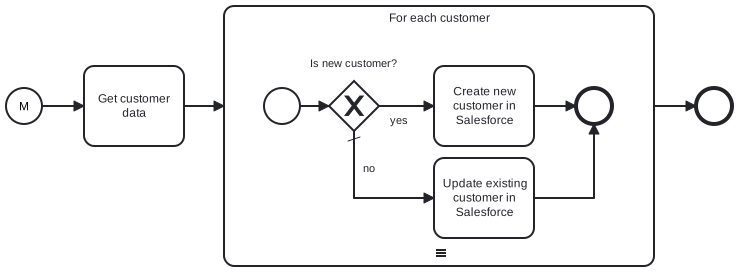
Synchronize data to Salesforce
By using the CreateSObject and
UpdateSObject tasks we can create an integration that syncs
customer data from another CRM system.
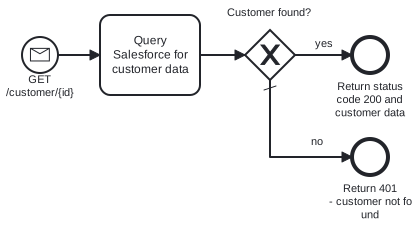
Query Salesforce data
By using the ExecuteQuery task we can create an integration that queries
Salesforce for customer data.
Templates for Salesforce
 Adobe Commerce / Magento Order to Salesforce
Adobe Commerce / Magento Product to Salesforce
Adobe Commerce / Magento Order to Salesforce
Adobe Commerce / Magento Product to Salesforce 

 Generic JSON Order File to Salesforce
JSON to Salesforce - Customers
Generic JSON Order File to Salesforce
JSON to Salesforce - Customers Salesforce account synchronization to Microsoft SQL database
Salesforce to JSON - Contacts
Salesforce account synchronization to Microsoft SQL database
Salesforce to JSON - Contacts Shopify to Salesforce - Customers
Shopify to Salesforce - Orders
Shopify to Salesforce - Products and prices
Synchronize customers from Magento to Salesforce
Shopify to Salesforce - Customers
Shopify to Salesforce - Orders
Shopify to Salesforce - Products and prices
Synchronize customers from Magento to Salesforce